943 views
owned this note
# "Lab" 0: Software guide
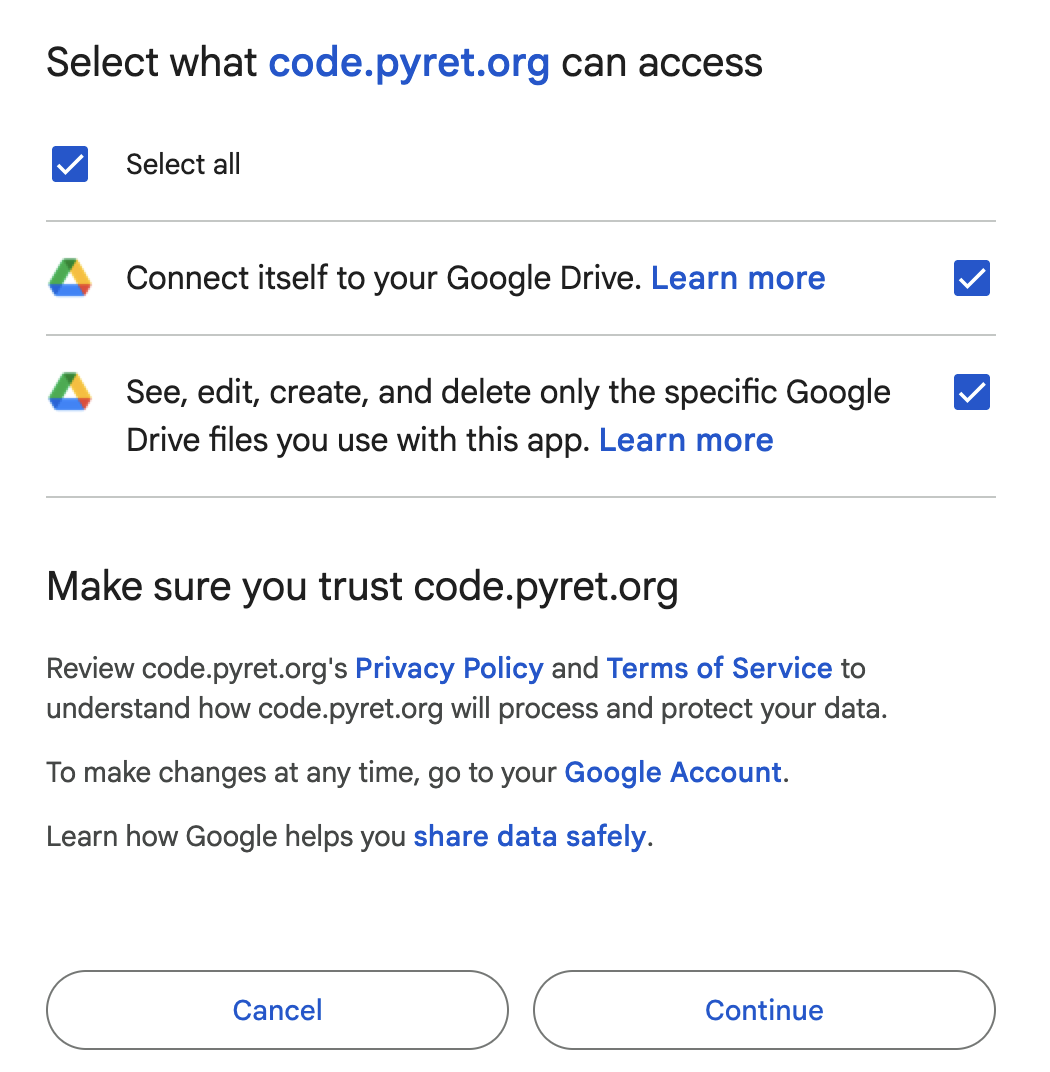
For the first part of the course, we program in Pyret. The programming environment (where you write your programs) is online at [https://code.pyret.org](https://code.pyret.org). You log into it with any Google account. **Make sure to press the checkbox that gives Pyret permission to save files:** (if you didn't do this the first time around, you can sign out and sign back in to get this screen again).
Starting in early November/April (depending on the semester), we will switch to programming in Python. This semester, we're working with a new-to-CS111 way to program in Python, which does not require the tricky setup of last year. We still want you to go through it now so that we can verify that it works for all students! **We will be able to see if you've completed this setup, so please actually do it.**
## Working with Python on EdSTEM Workspaces
We will use EdSTEM Workspaces, which allows you to access all the files and starter code you'll need for an assignment or lecture. Just like for Pyret, you'll be able to write and run your code in your browser without installing any additional software.
Log on to the course [EdSTEM](https://edstem.org) and click on the CS111 course for this semester. At the top of the screen (in the purple navigation bar), click on the "Workspaces" icon:

Click the "Public" section and click on the "Python setup" workspace:

This will open a workspace that you'll be able to view but not modify. In the gray toolbar, press the "fork" button. Fork is a computer science term for creating your own copy of a programming project, which you will be able to modify.

In order to run the file, we have to use a text command that we type in to a special window called the "terminal". Click the "open terminal", which will open a terminal (a prompt window for interacting with a computing environment) at the bottom of the screen.

In the terminal, type `pytest test_setup.py` and press enter/return.

The command will run. You should check that the terminal says "6 passed" at the bottom. **It's OK if a warning appears.**

And you should also check that a new file called `test_plot.png` has appeared on the left side of the screen, and that it looks like this when you click on it:
